How to Top Up or Adjust a User's Earning Points
Add or deduct earnings points for one or many users at once — for corrections, or exceptions.
Who can use this feature
Available on the Starter plan and above.
Requires one of these admin permissions: Super Admin, Update Users, or Create Manual Point Top-ups.
Who this is for
Admins who need to give or remove points outside the normal recognition flow — such as for individual corrections.
What you'll achieve
A one-off point adjustment applied to one or more users. Earnings points (used for rewards) can be added or deducted.
Before you begin
You have one of the required permissions — Super Admin, Edit users, or Ad hoc points
Your workspace is on the Starter plan or above
You know which users should receive the adjustment
Earnings — quick reminder.
Earnings are points someone has received and can redeem for rewards.
Steps
Point adjustments use the Allocate Earnings bulk action on the Users page. Even if you're adjusting a single person, the flow is the same — select one row instead of many.
Open the Users page — go to Admin → Users & Permissions → Users.
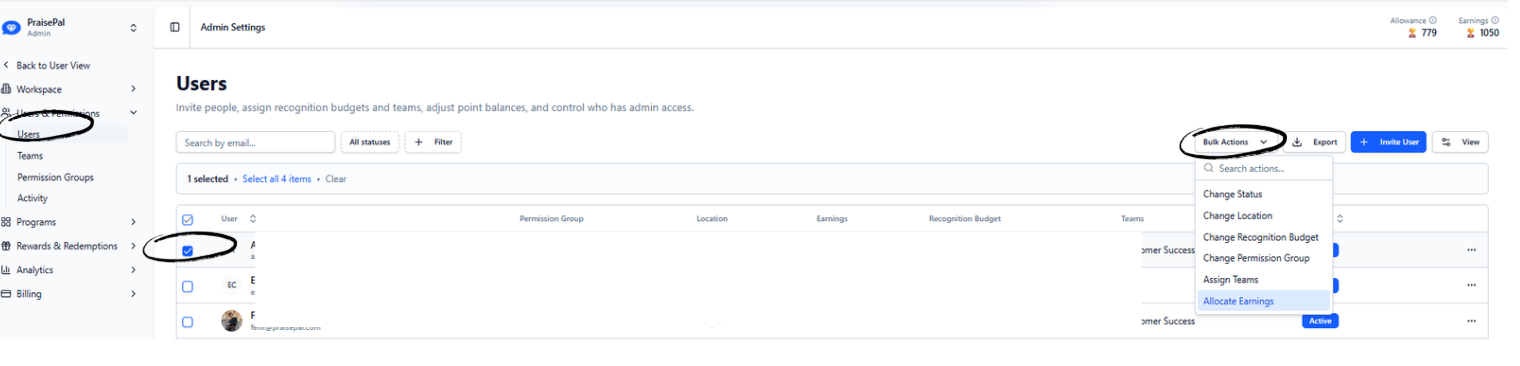
Select users — tick the checkbox next to each person you want to adjust. To apply the same adjustment to everyone matching your current search or filters, click the "Select all N items" link in the selection bar that appears. This applies the adjustment to every matching user, not just the current page.
Open the bulk action — click Bulk Actions and choose Allocate Earnings.
Enter the adjustment — type the number of points. For a deduction, enter a negative number (for example
-50).Confirm — the action requires two confirmations. On the first click, a summary appears. Deductions show a separate warning styled as a destructive action. Confirm again to apply.
"Select all" applies to every matching user.
"Select all" applies to every matching user. If you have filters or a search active, the adjustment applies to everyone who matches — which may be more people than you see on the current page. Double-check your filters before confirming.
What to expect after
You'll see a toast confirming the result — for example "Successfully updated 12 user(s)", or a breakdown of successes, failures, and skipped users if some could not be processed.
Top-ups (positive points) trigger an email to each affected user with the subject "You've received a top up to your [redeemable earnings]!" and a link to PraisePal.
Deductions (negative points) do not send any notification to the user.
Every adjustment is recorded in the Manual Point Activity log under Admin → Analytics → Spend. Each entry shows the recipient, the admin who made the change, the type, the point amount, and the date.
Common mistakes
I deducted earnings but the full amount wasn't removed
I deducted earnings but the full amount wasn't removed
Earnings deductions are capped at the user's current balance. If someone has 30 points and you deduct 100, only 30 are removed and their balance goes to zero. The operation still counts as a success — no error is shown. Check the Activity log to see how much was actually deducted per user.
I meant to adjust one person but affected many
I meant to adjust one person but affected many
If "Select all" was active, the adjustment applied to everyone matching your current filters — not just the visible page. There is no undo for bulk allocations. To reverse the change, run another adjustment with the opposite sign for the same users. Check the Activity log to confirm who was affected.
Some users were skipped or failed
Some users were skipped or failed
The confirmation toast shows separate counts for successes, skips, and failures. Users may be skipped if they were deactivated or deleted between selection and confirmation. If failures persist, note the count and contact support.
Related articles
Was this helpful?
Still need help? Ask the team